Setting Up a Productivity Calendar
See also “Productivity” During Disruption, a related teaching tip on adjusting productivity expectations during challenging times.
Friends and family think you have it made: “You only teach three days a week, and then you just get to ‘research’?” The unstructured time of faculty work is both liberating and daunting. So how do we effectively pace long-term projects while attending to teaching, email, committee work, and a sense of balance?
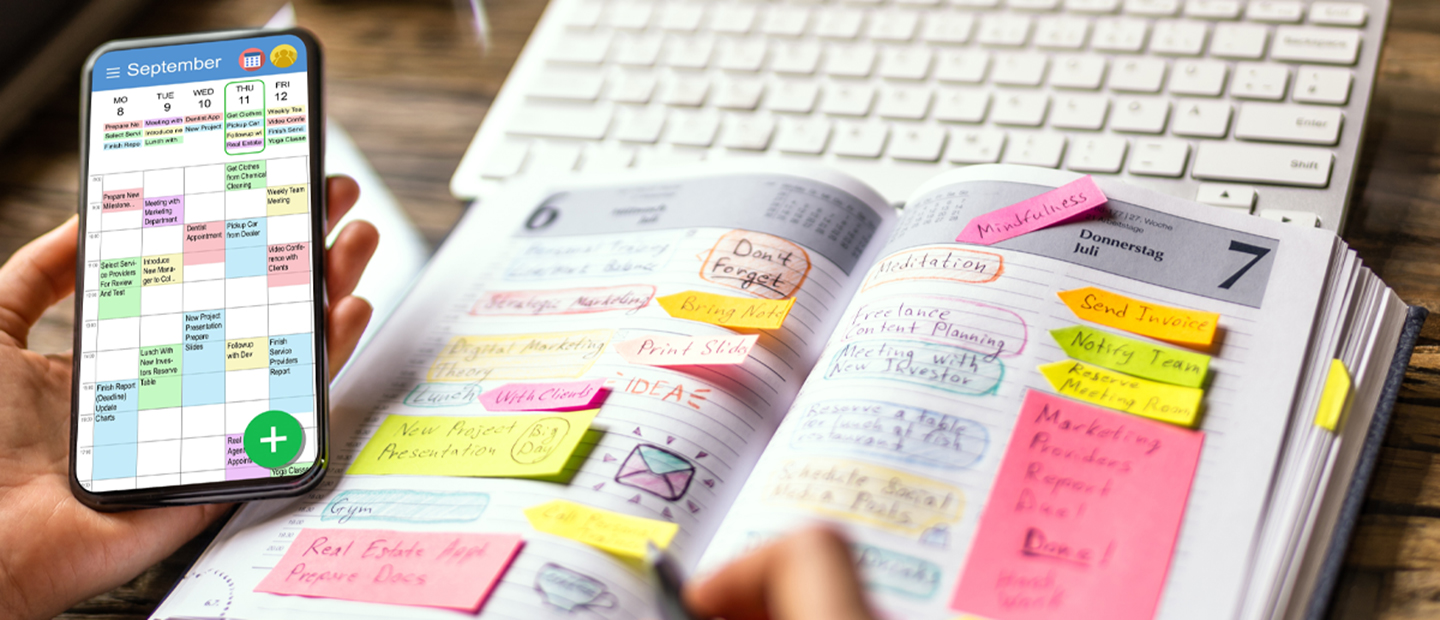
Some people have an incredible ability to not only juggle dozens of work, family, and life responsibilities, but also attend to each responsibility with full focus. How do they do it? In his book on The Organized Mind, neuroscientist Daniel Levintin explained the power of careful, structured planning to one’s calendar in letting your mind focus on a single task. “Highly successful people,” as he calls them, have the benefit of personal assistants to plan their day, but those of us who work without an assistant can make our own using a productivity calendar. The productivity calendar plots out your day on a calendar that can be viewed in conjunction with your other calendars, but is not visible to colleagues who are looking for open times for a meeting. While this concept is likely possible with other calendar tools, these steps are based on Google Calendar.
Managing Your Productivity Calendar
-
Set it up. In Google Calendar Settings, go to “Add Calendar.” Call it “Productivity,” “Personal Assistant,” or whatever suits you. Then, begin adding events! When creating events, select your Productivity calendar as the organizer. You can always show or hide this calendar as needed. Also, add your regular calendar events to your Productivity calendar so that you know that time is occupied.
-
Plan one week at a time (except for repeated events). That is as far ahead as you want to go in order to keep long-term and short-term needs in a timely balance. One exception would be repeated events, which are a good way to manage long-term commitments (more on this in No. 4).
-
Designate time for work and wellbeing. Create work events (research, writing, proposals, committee work) and rest events (lunch, walk break, mindfulness exercise). Productivity is not just about packing the day with work, but also setting realistic expectations and planning for balance and personal well-being.
-
Plan events based on long-term significance. What are the 3-4 most significant work projects before you? How can they be broken down into tasks you will likely need to repeat 2-3 times a week? Create blocks of time on your Productivity calendar for this project, and use the event descriptions to list the 3-4 tasks you need to accomplish to make progress on that project.
-
Reserve email for specific time slots. Researchers have exposed compulsive email-checking as a productivity killer. Create events just for emails, and keep them brief. I like to make two email events, each 30 minutes, with some exceptions (e.g. Email & Misc make a bigger category at the beginning of the week). Outside of that time, keep email out of sight. Our brain can’t handle knowing a new email waits in our inbox! If allocating specific time slots for on-email seems unworkable, try scheduling off-email time. Is one work hour away from email manageable? How about two? As with all of these suggestions, you’ll likely need some trial-and-error time to figure out what works best.
Managing Email Expectations with Students
Examples:
You may want to communicate this practice with your students so that they manage their expectations accordingly. If an email thread with students threatens to take you beyond your email time range, tell students when you will be able to engage in the discussion again, ask the student to stop by office hours, or discuss by phone or web conference.- I won’t be able to check email in the next few hours. In the meantime, [suggested course of action].
- Email may not be the most effective method to resolve this issue. Please give me a call at xxx-xxx-xxxx. If you call after [your end time], I will call you back if you leave your number.
- Let’s pause this discussion until our next class session. Arrive five minutes early or we can talk after class.
-
Siphon small tasks to a Miscellaneous event. While working on a significant tasks (especially if your brain is looking for distraction), you will remember the question you need follow up on, the call you need to return, or the dinner event you need to plan. List these in the description of a Miscellaneous event so that you won’t forget to attend to it, but you also won’t navigate away from the important task at hand. You might set 2-3 in one day.
-
Move events rather than deleting them. Realize you need to add a task to an already full day? Since everything on your calendar is important, select the item that can be delayed and pick a specific day and time to complete it. This reinforces that time is a finite and precious resource
-
Adjust the calendar to reflect how the day was spent. Sometimes it is worth stretching the time we allot to a significant task, or impromptu events get in the way. Midway or at the end of a day, adjust the calendar to reflect how the day was spent. This will help keep you accountable to your long term goals.
Reading on Productivity
These books provide the research and principles behind the Productivity calendar, such as focused tasks, prioritizing, and email management. The Upgrade podcast offers an interview with Duhigg on Smarter Faster Better, and Levitin gives a 52-minute Talks at Google Presentation on The Organized Mind, a book available in CETL’s library in 430 Kresge Library.
Duhigg, C. (2016). Smarter faster better: The transformative power of real productivity. Random House.
Levitin, D. J. (2015). The organized mind: Thinking straight in the age of information overload. Dutton.
Save and adapt a Google Doc version of this teaching tip.
About the Author
Written by Christina Moore, Center for Excellence in Teaching and Learning at Oakland University. Others may share and adapt under Creative Commons License CC BY-NC. View all CETL Weekly Teaching Tips. Follow these and more on Facebook, Twitter, and LinkedIn.

Tips for Planning Winter 2023 Teaching and Learning
While this is not necessarily a comprehensive list, it can provide a structure for many of the planning items to attend to for winter 2023. Make a copy of this checklist, and add additional notes and items specific to your needs.
Many of these items are similar to our previous planning tips, but we emphasize ways to elevate care and support amid uncertainty. Part of that care and support is attending to those things that motivate learning and boost our energy and wellbeing.
- Plan upcoming courses by reflecting on the most recent semester. Do a 15-minute reflection to recognize the successes and shortcomings of the semester while they are fresh in your mind.
- Prepare for a new and improved Moodle. Moodle will go through a noticeable upgrade on December 19, 2022. While it will look different, previous Moodle courses will be maintained and it will overall have the same functions. Review the Moodle 4.0 Updates Quick Reference, which includes screen shots and videos, and sign up for a Moodle 4.0 Update Workshop.
- Use the syllabus to help guide course planning. The OU Syllabus Template includes updated guidance on affordable course texts, HyFlex, and continued student support and resources.
- Plan for uncertainty, with remote options for some or all students (and yourself). While COVID has been generally less disruptive in recent months, remote options may be needed for yourself and students due to illness, weather, and other emergencies. Consider what you would have to do to conduct class sessions online, perhaps in consultation with e-LIS instructional designers, and have this backup plan in place.
- Cut, simplify, and leave space for motivation. Many faculty have shared that students have been overwhelmed and have struggled. Re-evaluate the quantity, quality, and organization of assignments to get the most out of students’ available bandwidth. Also consider ways to boost motivation by allowing students more choice and agency in their assignments, or by actively engaging students in class. See ideas shared in our recent Course Planning Quick Note.
- Before the semester begins, send a welcome message to students, clarifying when and where classes will be meeting (if having synchronous sessions). Some students may still be getting used to a variety of class formats. If possible, also guide students to your syllabus and Moodle course so that they can prepare accordingly. Using the Announcements forum in Moodle automatically emails anyone registered for your class and provides links to the Moodle course. (If your Moodle course is not ready, consider hiding all content except for the basic course info. Doing this instead of hiding the whole course will help avoid student confusion.)
- Get an early idea of who your students are. Asking students to fill out a simple form will help you move from hypothetical situations to working with the students you have. Use and adapt this Preparing for the Semester Google Form.
- If teaching in the classroom, visit the classroom ahead of time to review the layout and available supplies and technology. More general purpose classrooms are updating their technology, so it helps to not only become familiar with it but consider your options for recording and live streaming courses. See CSITS’s website for programs available in general purpose classrooms.
- Get everyone moving in class, such as by doing jigsaw group activities and gallery walks. Create scenarios, labs, and other active learning situations that connect students to the actions and objects of their craft. See more formats and planning in our Keeping Students Engaged Guide.
View a Google Doc version of this teaching tip.
Written and designed by Christina Moore, Center for Excellence in Teaching and Learning at Oakland University. Others may share and adapt under Creative Commons License CC BY-NC. View all CETL Weekly Teaching Tips.
Center for Excellence in Teaching and Learning
100 Library Drive
Rochester, Michigan 48309-4479
(location map)
(248) 370-2751
[email protected]


Center for Excellence in Teaching and Learning
100 Library Drive
Rochester, Michigan 48309-4479
(location map)
(248) 370-2751
[email protected]