
Beyond Inclusive Practices and Teaching Tips
This teaching tip builds off of a June 2021 teaching tip, reflecting another year of struggle and trauma, but also a call to dedicate our precious time and energy to what really matters.
At the end of year two of pandemic teaching, so many faculty, staff, and students are depleted. This state is making many of us question what is important and worth our precious energy. As the Great Resignation shows, we are reclaiming our time and reframing our work. It is a moment for reflection, contemplating where we go from here and how our labor can best contribute to meaningful change. One area of meaningful change persistent in the hearts of educators is social justice.
While we have not done nearly enough related to social justice in higher education and beyond, many faculty, staff and students continue to focus on how to make our institutions more equitable. Inclusive practices are general actions and behaviors that proactively encourage value and belonging and removes barriers that get in the way, focusing on marginalized groups. Arguably, “inclusive practices” is a term morphing into a buzz word, something we say so often that we wonder if it is getting diluted, perhaps a step up from “tolerance,” but still in the realm of feelings and small actions rather than structural changes. For this reason, University of Michigan’s Center for Research in Learning and Teaching has shifted toward “equity-focused teaching” with the intention to “disrupt systems of privilege and disadvantage, and acknowledge a shared responsibility amongst instructors and students for re-thinking and changing patterns of educational disenfranchisement.”
This “teaching tip” does not attempt to achieve inclusivity and equity with a checklist. Instead, these are a few opportunities available that I hope will fit with whatever your interests and goals.
Reflect
Reflection has the power of being both rejuvenating and idea-generating. Take stock of who you are, your perspectives and experiences, and opportunities you have to promote inclusion and interrupt inequitable practices in your teaching, scholarship and other work. Recording these over time lays a foundation for any other work to come. Some reflection prompts are offered in a past teaching tip.
Take a structured, low-stress, longer-term learning experience.
We likely don’t need any more homework or projects, but we also likely love learning. Consider enrolling in a series of workshops or a course that structures high quality learning opportunities with a time commitment you can manage. Something more than a single workshop or webinar is what will help us process an idea over time and help us implement real changes to practice. Only a few of many good possibilities are included below, and many more are in our Inclusive Practices Teaching Resources:
- Inclusive Teaching Online Course from Columbia. I have gone through most of this free course and have found it both manageable and substantive. Another faculty member found it helpful to go through the course with a group of colleagues.
- Academics for Black Survival and Wellness. Since June 2020, this organization has facilitated training for thousands of academics and continues to offer trainings, workshops, and calls to action. Browse their anti-racism training resources.
- OU Diversity Challenge. This year’s Diversity Challenge, a 10-week online learning experience, featured the expertise and experiences of OU faculty and staff. As all of these challenges have self-paced options, continue to this and last year’s Diversity Challenge for individual and group learning opportunities.
- Initiative for Eradicating Racism at OU. This OU group organized within SEHS is an excellent example of an action-based group tackling racist systems and policies built into educational institutions. Drs. Chaunda Scott, Danielle Ligocki, and Robert Martin shared IER’s work at the recent Lilly Teaching and Learning Conference (video:16 minutes).
- Anti-Racism Discussion Group at OU. Starting in September 2020, a subcommittee of the AP Assembly Professional Development Committee has facilitated monthly conversations around topics relating to anti-racism. The next two discussions are on Unpacking Whiteness (May 16) and Reflections/Action Steps (June 20), and then will resume monthly meetings in September. All of the learning materials are available in the discussion group’s resources.
- Learn more about OU Employee Resource Groups. Groups for several identity groups and their allies meet to support one another in their challenges and triumphs at Oakland University. Their pages may provide more info on how to be involved in their events and inclusive efforts.
Choose a focus to explore
You might want to take a deeper dive into a specific focus related to inclusive practices and equity-based teaching. Some of our teaching resource collections touch on these topics, offering learning materials in a variety of media and encouraging you to adapt the collection to your needs.
- Inclusive Practices and Diversity
- Civility and Compassion in Teaching
- Digital Accessibility
- Indigenous Perspectives in Teaching and Learning
- Open Educational Resources
- Trauma-Informed Teaching Practices
- Universal Design for Learning
As I offer these ideas, I encourage taking this work at a sustainable pace with the long term in mind. As you listen, read, discuss, and process these materials, I hope you will identify ways to channel your current expertise, labor, and resources to help all students and faculty thrive.
Save and adapt a Google Doc version of this teaching tip.
Written by Christina Moore, Center for Excellence in Teaching and Learning at Oakland University. Photo by Olga Safronova on Unsplash. Others may share and adapt under Creative Commons License CC BY-NC. View all CETL Weekly Teaching Tips. Follow these and more on Facebook, Twitter, and LinkedIn.
How to Conquer Email
Shaun Moore is the Director of e-Learning and Instructional Support (e-LIS) at Oakland University. e-LIS’ Digital Organization Guide offers more steps on email management along with commanding your calendar, tackling your tasks, and controlling your files.
Do you ever let unread emails stack up in your inbox? Do you ever read a message, then mark it as unread so you will remember to go back and act on it later? Have you ever sent an email with a question to someone, thinking the ball is in their court now, but never hear back from them, and end up forgetting about your email (and potentially dropping the ball on a project you’re working on)?
If you answered yes to any of these questions, there are methods you can use to more effectively manage your email, remember messages to check up on, and even get to the elusive 0 messages in the inbox. While these tricks are possible with other email clients, these steps are based on OU’s Gmail.
Managing Your Email
Organize emails with labels and stars
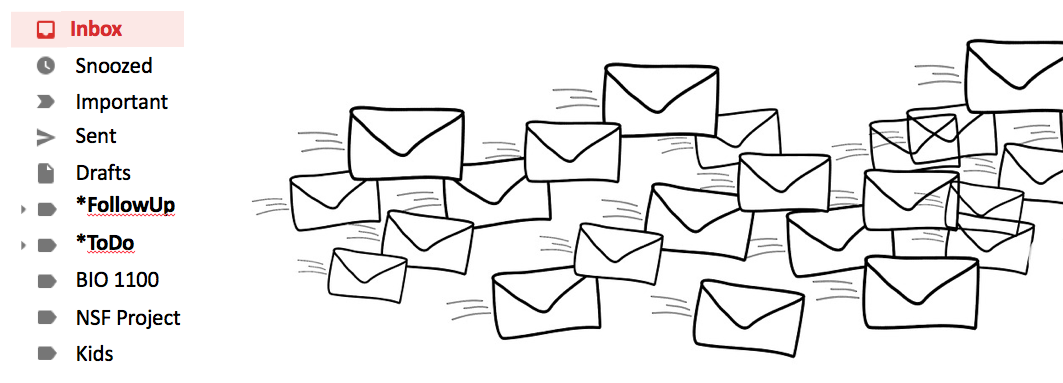
At the top of every email message are icons that help you organize the message. The very last icon that looks like a blank price tag is for labels. Labels are like folders for organizing emails, only you can tag messages with more than one label, so they’re more versatile. To add a label to any message, click the icon, and start typing in a label. If it already exists, you can select it, or create a new one. You can add more than one label to a message. You can remove a message from the inbox by removing the Inbox label. You can even change the color of labels by clicking the three dot icon to the right of the label name and selecting Label color.
The star feature is a way of adding further information about an email. You may have emails in a label called Summer Project. You can click the star icon to the left of any message to add a star to that message, which may indicate things that have to be done by you, or by a certain time. You can even add different icons instead of just the yellow star by clicking the gear icon in the top right and going to Settings. Scroll down that page to the star section and you can drag other icons to the “in use” section. Clicking the star icon will toggle through the different icons you have actively in use. Step-by-step “star” directions from Gmail.
Move replies you are waiting on to a Follow Up label.
Never forget to follow up on an email again by using this method. After sending out a message that you need a response to, click the Sent link, check the box next to the email, and add it to a follow up label. You can put an asterix at the beginning to make it the top label (e.g.: * FollowUp) Once you start to do this, be sure to get in the habit of checking the FollowUp label daily to see if there are messages you need to follow up on.
Move action items to a tasks label.
Don’t mark messages as unread to keep them as a makeshift task list. Instead, create a label for things you need to take action on. If you read a message and can’t take action on it immediately, add it to a tasks label (e.g.: * ToDo). Again, be sure to get in the habit of checking the ToDo label daily to see if there are messages you need to take action on.
Track tasks with Google Tasks.
Sometimes emails lead to larger projects that need to be tracked over time. Google has a built in task tracking program called Google Tasks to help with this. You’ll find the icon for tasks on the far right side of the screen in Gmail or Google Calendar. Clicking that will allow you to add new tasks. You can also start a task with any email using the three dots icon above the email and selecting Add to Tasks. This will add a link to the email in the task, making it the quickest way to remember to come back and do something instead of just marking it as unread.
Automatically label and move messages with filters
Using the down arrow icon in the search box will also allow you to create a filter with that search by typing in your search criteria then clicking the Create filter button. Filters are rules that can do things like move messages that match what you’re searching for into a label, mark them as read, forward them to different email accounts, or even delete them. This is a wonderful way to sort through mailings lists you’re a part of. One method is to move all of them to a specific label to read when you have time (e.g.: * ToRead).
Find messages quickly with the Search mail box.
At the very top of the any page in Gmail is a search box (Search all conversations) where you can start typing to quickly find any message. Having messages organized by label is nice, but the search feature will find all messages based on your search string no matter where they are. You can search by anything in the box, such as email address, name, subject, words in a message, etc. If you want to get specific with your search, click the down arrow icon on the right side of the search box to put text in specific fields. You can put quotes around words to search for that exact phrase, or put a minus in front of a word or phrase to exclude it.
When you have filters moving messages into different labels and removing them from the inbox, they can sometimes get lost. One trick is to enter is:unread in the search box. This will show you all unread messages, regardless of what label they’re in. This is good to run every now and again to make sure nothing slips through the cracks.
Automatically label and move messages with filters
Using the down arrow icon in the search box will also allow you to create a filter with that search by typing in your search criteria then clicking the Create filter button. Filters are rules that can do things like move messages that match what you’re searching for into a label, mark them as read, forward them to different email accounts, or even delete them. This is a wonderful way to sort through mailings lists you’re a part of. One method is to move all of them to a specific label to read when you have time (e.g.: * ToRead).
Customize your email preferences with Settings
Clicking the gear icon in the top right of any page will bring you to a menu where you can click Settings. There are many different ways you can customize your email here, with tabs along the top for different areas. Here are a few examples to check out in the different tabs:
- General
-
- Undo Send - A life saving setting where you can have Gmail delay sending a message up to 30 seconds. If you’ve ever sent out an email and remembered something to add right after, or realized you spelled something wrong, you can click the Undo link, make the change, and then send it out when you’re ready.
- Default reply behavior - You can change this to Reply all by default, this way you won’t forget to include others when replying if there are multiple recipients on the message.
- My picture - Change the picture that is associated with emails you send.
- Signatures - Change the default text that is automatically appended to every message you send.
- Vacation responder - Set an automatic reply for a date range when you’ll be out of the office for things like conferences or vacation.
- Labels - This is where you go to manage all of your labels. Here you can choose if labels are shown or hidden in your default list on the left. You can also edit the label names here, or delete them (remove).
- Accounts - You can add additional Gmail accounts here to be able to check and send email from those accounts all in one place.
- Filters and Blocked Addresses - This is where you go to manage all of your filters. Here you can edit or delete the filters you’ve setup.This is useful if a mailing list you subscribe to changes the email they’re sending the message from, or the subject, or whatever you are using to filter the message.
- Forwarding and POP/IMAP - Here you can enable IMAP so you can check your OU email messages on other devices.
- Chat - Setting to turn Chat on or off. It should be on by default. On the lower left hand side of your main Gmail window, you’ll see a talk bubble icon with quotes in it. Clicking this will bring up the chat box. You can start an instant message chat with anyone in your contact list.
- Themes - Change the look of webmail by adding a preset theme or your own image as the background image.
About the Author
Shaun Moore is the Director e-Learning and Instructional Support (e-LIS) at OU, where he earned a Ph.D. in Educational Leadership, with a specialization in Higher Education. Along with his staff position, he is a part-time faculty in the School of Business. He won the 2021 Excellence in Teaching Award. His research in online learning in higher education has taken him across the country to present at national conferences. Outside of OU, he enjoys creative writing, playing video games, and dressing up as a stormtrooper. He can be reached at [email protected].
Banner image by Tall Chris (Flickr). Others may share and adapt under Creative Commons License CC BY-NC.

Stepping in as a Student: Increasing Teaching Presence in an Asynchronous Online Course Banner
Teaching presence, or the visibility of the instructor in an online course, has been found to support learner achievement and satisfaction (Cornelius-White 2007). Establishing an effective teaching presence can be elusive, however, as it requires a robust course structure and active instructor leadership (Garrison & Cleveland-Innes 2005). Instructors commonly establish teaching presence by making content videos for their course and responding to students in forum discussions.
Several semesters ago in my online courses on linguistics and international studies, I realized there is another way I can establish my teaching presence meaningfully and creatively: I take the role of a student and post some of the same written work as my students. This includes forum postings, essays, surveys, research assignments, and answers to open-ended questions in homework assignments. In all cases, responses involve demonstrating an understanding of one or more theoretical concepts and applying them to personal examples. (See more on this method of structuring written assignments in Essays Your Students Want to Write.)
How to Do It
- “My Examples” Serve as Model Responses. The responses I provide are typically called "My Example" and serve as a model for students to follow. Students find them useful because they show exactly what I am getting at in the assignment in a way the assignment directions may not.
- Select Appropriate Examples. I have to choose appropriate examples based on my role as the instructor in the course. My examples can be personal but not uncomfortably so.
-
- Since I teach linguistics and international studies, I often refer to my background as a speaker of Slovak and Chinese and the years I spent living and working abroad. My observations and experiences provide unique examples of various issues covered in the course materials.
- I also reference the gym I go to. Gyms are a setting many students can relate to, and my gym-related examples are based on my personal experience but do not involve interactions that are too sensitive to share.
- I discuss my family and our daily life, but I am careful to avoid situations that would cause embarrassment.
- Answer Questions Selectively. Stepping in as a student takes some finesse. I don't want students to use my responses as a stand-in for completing the reading or watching the video (i.e. I don't want them to copy my responses!). Often I answer only the “personal example” part of the assignment question and not the parts relating to the theoretical concepts I want students to understand. I ask students to provide their own answers to those parts of the question.
Conclusion
I have been stepping in as a student for over two years now. I find it to be an effective and enjoyable way to establish my teaching presence and express my individuality as an instructor. Stepping in gives me a chance to connect with students and test my open-ended questions and assignments to make sure they work as intended. Students have also commented they enjoy reading my examples!
References
Cornelius-White, J. (2007). Learner-Centered Teacher-Student Relationships Are Effective: A Meta-Analysis. Review of Educational Research, 77(1), 113–143.
Garrison, D., & Cleveland-Innes, M. (2005). Facilitating cognitive presence in online learning: Interaction is not enough. The American Journal of Distance Education, 19, 133–148.
Save and adapt a Google Doc version of this teaching tip.
About the Author
Helena Riha teaches Linguistics and International Studies. She has taught over 3,300 students at OU in 16 different courses and is currently developing a new online General Education course. Helena is the 2016 winner of the OU Excellence in Teaching Award. This is her twelfth teaching tip. Outside of the classroom, Helena enjoys watching her fifth grader design his own Lego creations.
Edited and designed by Christina Moore, Center for Excellence in Teaching and Learning at Oakland University. Others may share and adapt under Creative Commons License CC BY-NC.
Teaching Presence in an Interactive Virtual Office
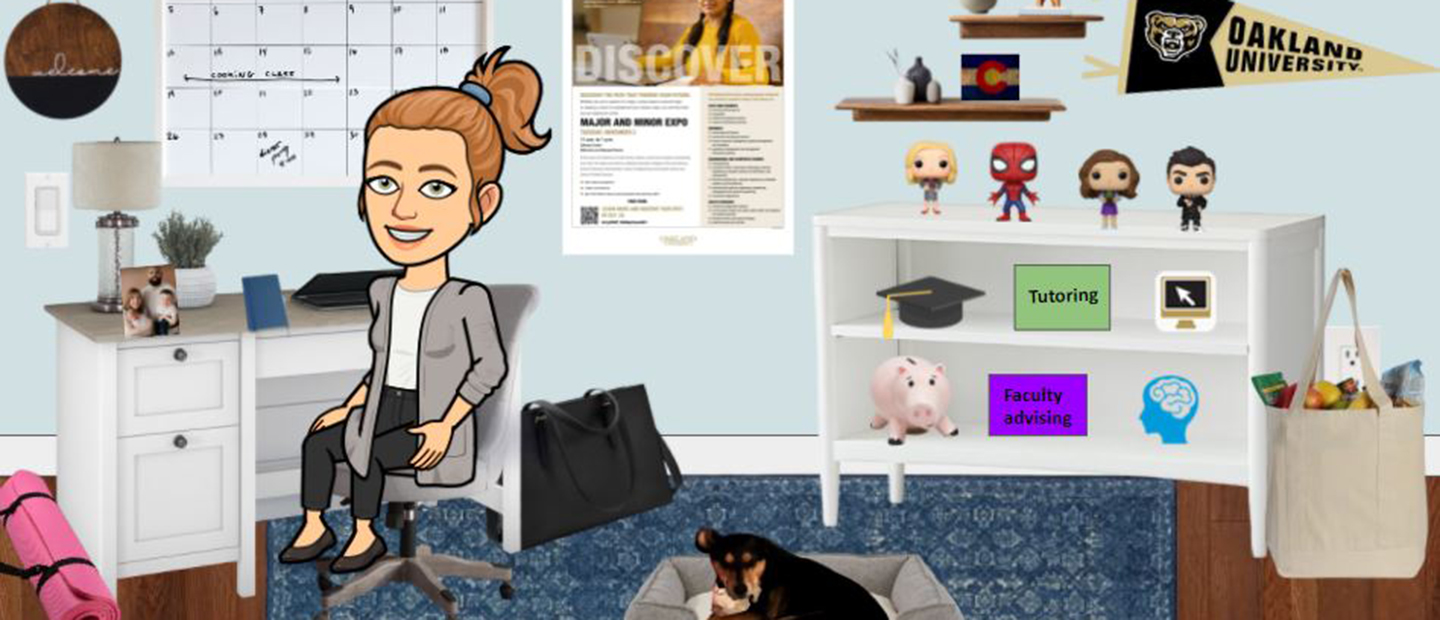
Annie Hegedus, adviser in the College of Arts and Science at Oakland University, has a link in her email signature that says “Virtual Office.” Her virtual office takes you to a Google Slide with her avatar seated in an office with more than a dozen clickable elements that share some information about her and about related services and events happening on campus. This simple, fun resource is something you and your students can return to throughout the semester. It could also be an introductory activity for students to create their own “virtual office.” This video teaching tip features Annie walking us through her process of creating this virtual office and us brainstorming additional options instructors may want to consider.
Transcript
[Christina] Welcome to the weekly teaching tip series. My name is Christina Moore from the Center for Excellence in Teaching and Learning at Oakland University. Every Monday, we publish a new teaching tip on our blog, which is at Oakland dot edu slash teaching tips. This is a very special video addition to the series. So today I'm talking with Annie Hegedus, who is an academic adviser at the College of Arts and Sciences. This came up because Annie and I email from time to time. One time I noticed in her e-signature with her email, that she had a hyperlinked phrase that said virtual office and an invitation to click on present to explore her virtual office. So I did exactly that. I had a lot of fun and I saw in this a great application for just about anyone. But specifically I was thinking about a virtual office for our instructors and faculty. So I asked Annie to stop by and share some of the ins and outs of this idea, show us around her virtual office and anything else surrounding the creation and how, and then we'll have a conversation about how this can apply from the professor and students' side of things. I'll let you take us for a tour, Annie.
[Annie] Thanks Christina. This all started during the early stages of the pandemic. So I'm in an advisor group for our national organization, the National Association of Academic Advising, NACADA. We have some different Facebook groups or things where we're sharing ideas of how we really miss being in-person with our students and interacting with them. Much of the stuff that comes from a student seeing a Marvel figure in my office and I was chatting about Marvel movies for five minutes before we jumped into their classes. We just missed that. So somebody presented this idea of building your own virtual office or virtual classroom. So I'll share a tutorial that we had been starting with. This was a really good tutorial that someone had shared from that group. Stephanie Harris is an English Educator. Believe she's done both K12 and higher education, but she created this really great tutorial that I won't run all the way through, but I'll make sure Christina gets the link too. So it talks about setting up your background and adding a bitmoji to it, your little person.
And it was really fun. So I decided to play around with it. Saying it was kind of like a Friday night during the pandemic, can't go anywhere. Just started playing around and I'm not a technical person, but it was super fun. This is what my virtual office looks like currently. I thought it was pretty, pretty exciting to kind of like pick out furniture that I would have in my dream office or little things to kind of talk about who I am as a person outside of just our advising interactions. Well, this one, you can either, when you do this, you can either let students come here and just have you access and present it as a slideshow, which is what I usually do. Or you can publish it to the web. So you could even put this link in other places if you have other spaces where you want students to be able to access it. I tried to keep it a mix though. Like on our welcome sign here, I've got our advising information, just in general info about our office. Some of the different campus services, like the Recreation, Career Services, some of those kinds of things going through and linking to those so students can him and maybe a fun way, which is, I just think it's a little more interesting for them to explore this space than me just sending them. Here's how you find Career Services website. So that's been really fun. And then I think that the resources are really helpful. But I also like the ability to be able to say, Oh, here's some more stuff about me outside of work. Like you can see my two dogs just sharing my office with me because that's what it looked like when I was working from home most of the time, they were just hanging out in the office with me. Some of the books that I've read recently, I just started linking to those on here. So if a student can see what I've been reading lately and a website that I really liked, the story graph app. I think that's a really cool thing that students might not know about. So they can kind of even explore that indirectly. Some of them are just kinda silly, like I like Spiderman a lot. So I've got like going to go to a commercial, but it's the Spider-Man theme, it links to that. So it's just kind of stuff to let students know that we're humans as advisors or even as faculty, like letting them see you outside of the classroom. One other one that I really liked was this compliment generator from Leslie Knope. So if you throw your name in here, you can get a compliment. And it'll give you a compliment from Leslie Knope from Parks and Rec. And Parks and Rec is one of my favorite shows. So I think that's another thing that students and I liked in the past to bond about. But when they're not coming into my office, they don't necessarily see that. So this was just one more avenue for them to kind of see what that looks like. The other thing I really love about it is that I can change it up as much as I want. So if I just added my bookshelf yesterday, so I can change this and put more resources there or I can change it if we have an event going on, I can throw that poster up right here or something like that. But it is just kind of a nice way for students to get the information in a little bit different way and show them that we are not like really young and hip necessarily like it kind of has a little bit more speaking that Gen Z language. Yeah.
[Christina] It's funny that you mentioned the Parks and Rec connection and talking about offices and how we might not always be able to see things because I did notice when we got on the call that you had a Pawnee poster in the back of your real office. It's nice when we, I did notice that without us explicitly talking about your actual office, which I don't see all the time, but with your virtual office, there's another way that you can communicate that so it worked in both ways. Which is kind of the dream.
[Annie] And some of us kind of saying too, in this advising group, like at the start of the pandemic, we spend so much time on our offices, but like it or not, they become this little extension of ourselves anyway, and a lot of us were missing our little offices and the decorations I've got on the walls. And people had left their little Franco pops at the office because they thought they'd be gone for a couple of weeks at the start of the pandemic and then they were away from their office for a year-and-a-half. Like, it was just a nice thing for us to, to kind of get to be creative and explore some ideas and feel a little bit connected to our office even when we were away.
[Christina] So there were a few things I thought of while you were talking now. And when I first did exploring on my own and on the thread of what we're talking about now as far as the places where we work and how they become expressions of ourselves. I mean, for one, our workplaces have multiplied in some cases because we might have an on-campus place where we work and an office at home. And now students are seeing both of those more than they probably did in the past. But I do also think of the situation that some part-time faculty are in where they do not have either an office at all or they have a shared office space, so they're a bit limited on how they can customize it. So it's nice to have this virtual presence that like you said, it's like our fantasy for how clean and how many different things it has and all the furniture that we can't afford to buy. It becomes this really fun and exciting place to generate that is still communicating all this information in a fun way. I also think about, I mean, really, what you've presented here I think clearly shows, has the same opportunities and connections for faculty and students. I mean, the first thing I think about is the syllabus. We, we tend to have a lot of policies and our syllabi which are good because we don't know what information students need and we want it to be consistent on what we offer. But obviously it starts to read like a contract when it gets to be very long. So I see this as another way to emphasize and communicate in a different way. Some of those things like you have the calendar folks could link to. I think it does. Yours links to the academic calendar link.
[Annie] Yeah, it links, I just thought about the registrar's office, yeah.
[Christina] So I can see faculty doing exactly the same thing, or it might be the course schedule section of the syllabus to remind us of when those due dates are. You linked to different things that you probably talk with students about as far as advising, I can see some of these linking to different student organizations that are related to the class content or travel abroad or study abroad or something like that. So I think, and I am even looking at the Rec Center, if you happen to always be on the exercise bike, you might have a bike in the background and it also links to the Rec Center. So I think it's a way to, to have that teacher presence really whether you teach on campus or online or a mix of both. But just another way to emphasize who you are and how it connects with the class and how it just has that relationship building. But it also allows you to communicate some of the extras. I loved that you'd have a little family picture on the desk. I'll just say that.
[Annie] Yeah, I tried. Again, I think a lot of it comes back to humanizing us as advisors or as faculty, whoever is designing one just kind of showing, sometimes there's that power dynamic, especially I think as a student coming into either an advising space or into a classroom and they feel like, Okay, I can approach this person, they're in charge. But really if you kinda humanize yourself a little bit, you show like this is my family, these are my dogs. These are books I like or pop-culture things that I like. I think it opens the door to some of those connections. Then the other thing too that I haven't clicked on quite yet, but I tried to sort of link some of these mental health like the Counseling Center and the Food Pantry just to kind of embed those in here too, because those are things that I know students aren't always comfortable asking for, are asking for referrals too, but a lot of our students could benefit from those, kind of just throwing those in here as these are other campus resources normalizing it. These are just part of the resources we offer. You should use them. I think that's a good way to sort of like sneak that information in without a student having to necessarily directly ask.
[Christina] You can always first, first week of class or periodically kind of use this as a starting point to give people reminders or just kind of click through things so that people who remember that it's fair. And you're kind of using this fun thing to remind people of the schedule or remind students of the resources available to them. So I could see this being brought up in an instructional video or during an actual class session. So, the last thing we'll touch on and I'll ask you is, what tips you would have if a faculty member sees this, really likes this, and wants to get started. I mean, it may be clear to some, but Google Slides is being used here to create this, so tips on getting started. Did you start from a blank slate? Did you start with something else? How was your process?
[Annie] I started really from a completely blank slide and this tutorial, I'll kind of go into it just a little bit because I think that it was really helpful. It's like starting with this very blank slide here. And then you can choose a background color for your walls. And then they kinda show how to search for flooring and things like that. I think when I first saw the idea, I felt a little bit overwhelmed by it because I'm not a particularly technologically savvy person. So I was like, oh, this is, this is really cool that they did that, but I don't know if I could do it. And then once I started going through this tutorial and breaking it down like choosing my background color, choosing my flooring, and then saving the background. And kind of going through and pretty my little person in there and deciding what I wanted her to be doing and then looking for furniture. Pretty soon I was caught up in the fun of it all and kind of like the fantasy of oh, this amazing desk. I could have this really cool desk and I have this amazing bookshelf and yeah, there's no clutter in the office. It's all organized. So I think my biggest piece of advice would be whether you feel like you're particularly skilled in this area or not, once you get started with it, it's actually really fun and pretty easy. So just, I would say try not to be intimidated by it. And if you can, just think about what your ideal office would look like, whether that matches reality or not, I think, but it's this guide and there's lots of other video guides and things out there too online if you search for Google Slides Classroom, Google Slides Office. But there's so much help out there available. But it really is a fun creative process more than anything else.
[Christina] Yeah, and these resources will be on the blog component where this video will be posted as well if you want to check out some of these resources that Annie is referring to. And Annie was saying that she just made some changes recently to this. So there's really no no timeline/due date to this unless you want to make it available by a certain semester. But you can always make it plain and add to it. I mean, I think the point here is also to remember to have some fun. Because this has been a hard time and we need about as much fun as we can get and of course it helps if we are getting some good benefits along the way. So Annie, thanks so much for stopping by talking with us, showing us through these things. I think some people are going to be excited about it and they'll probably add it to their syllabus too. I could see.
I could see. Adding a link to your virtual office inside of the syllabus. Yes, for the blog posts version of this teaching tip, you can go to oakland.edu/teachingtips. This and many other good things are there. So thanks again and thanks everyone for stopping by.
References and Resources
- Annie’s Virtual Office
- Step by Step directions: Building a Bitmoji Classroom, by Stephanie Harris. This presentation was Annie’s starting point for creating her virtual office.
- Interactive Bitmoji Classroom Tutorial (17 minutes): an alternate video tutorial other NACADA members recommended
- University of Colorado reference guide to Google Slides Accessibility
Save and adapt a Google Doc version of this teaching tip.
View all CETL Weekly Teaching Tips.
Center for Excellence in Teaching and Learning
100 Library Drive
Rochester, Michigan 48309-4479
(location map)
(248) 370-2751
[email protected]


Center for Excellence in Teaching and Learning
100 Library Drive
Rochester, Michigan 48309-4479
(location map)
(248) 370-2751
[email protected]